


On most AI agent platforms, creating an AI agent means choosing a language model, writing a system prompt that tells the model how to behave, and connecting each tool one at a time before the AI agent can respond to anything.
Zenzap doesn't require any of those steps. Zenzap is an AI agent platform where you build AI agents in one click.
Here's how to build your first AI agent, step by step.
Can You Build an AI Agent Without Code?
Yes, you can build an AI agent without code, but you need to choose the right platform for it.
Most platforms still ask you to pick the model, write the instructions, and map each tool connection yourself before the AI agent can do anything. Zenzap doesn't. The AI agent tells you what it needs to connect each tool, and most tools connect with a one-click login to your account. There's no configuration screen.
Nothing needs to be set up before the AI agent can respond to your first request.
How to Build an AI Agent With No Code, Step by Step
The easiest way to build an AI agent without any code or technical skill is with Zenzap, which is the best option out there today for building agents quickly, in an easy chat format.
Building your first agent on Zenzap takes just three steps: name the AI agent, connect its tools, and give it a first task.
Here's how:
Step 1: Add Your AI Agent
- Download the Zenzap app
- Give your AI agent a name
- Choose a profile picture

Step 2: Connect Your Tools
The AI agent will ask you which tools you want to connect. Zenzap connects to over 2,000 tools, including the CRMs, accounting platforms, scheduling systems, and task management platforms most people use.
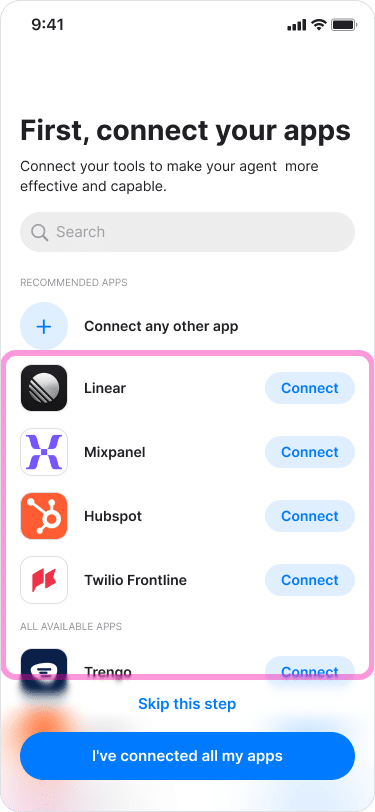
The AI agent will tell you exactly what it needs to connect to each tool. There are over 400+ tools with easy OAuth connection (just log in to your account), and thousands more you can connect via API.
For each tool you connect, you can choose what the AI agent is allowed to do there:
- Read Only. The AI agent can view data in that tool but can't change, delete, or add anything.
- Require Approval. The AI agent shows you its plan for that tool before acting, and waits for your approval.
- Always Allow. The AI agent can act in that tool without asking you first.
- Never Allow. The AI agent has no access to take action on that tool at all.
If you're not sure yet, start a new tool on Require Approval. The AI agent can look things up right away, but won’t take action in that tool until you're comfortable with how the AI agent works.
You're connecting your own account, so the AI agent can do in there exactly what you can do, and nothing more.
Step 3: Get Work Done
Once a tool is connected, the AI agent tells you what it can do for you with that tool and asks what you want it to do first.
You don't have to figure out the right question to ask, a good first task is whatever thing you hate doing: sorting your email inbox, generating reports, following up with people you keep chasing.
When you do ask for something, be specific about the result you want.

The AI agent can also flag problems you didn't ask about, as long as Require Approval is turned on for the tools involved.
Say two records in that comparison don't match up against a connected accounting tool. Instead of finishing the report on a guess, the AI agent tells you about the mismatch and asks whether to include those two records before it sends anything.
What You Can Do With Your AI Agent
Once an AI agent has the tool access it needs, its work falls into six categories:
- Taking action inside a connected tool, such as updating a record or changing a status, without you opening that tool yourself.
- Handling a recurring task on a schedule, so something you used to have to remember gets done on its own.
- Turning raw data into a report, pulling numbers from a connected tool and presenting them as a summary, comparison or chart.
- Summarizing information, condensing a long document or a busy chat down to the part that's relevant to you.
- Flagging something that needs attention, surfacing a deadline or a discrepancy before it turns into a bigger problem.
- Coordinating between tools, picking up on something decided in a conversation and updating a connected system to reflect it.
The National Institute of Standards and Technology (NIST) describes agentic AI as systems that work as autonomous agents, making decisions on their own, learning from what they run into, and adjusting as things change.
That’s the difference between an AI agent and a chatbot:
- A chatbot only answers your question. You still have to go into the tool and do the work yourself.
- An AI agent answers you AND does the work in the tool for you.
Connecting a second tool makes a new kind of job possible: one that spans two systems, like logging a deal in a CRM and raising the matching invoice in an accounting tool from a single request.
How to Use Your AI Agent With Your Team
Everything we’ve covered so far works with just you talking to your AI agent. You can also add AI agents and humans into a group chat so that other people can get access to the AI agent you built, without setting anything up themselves.
Sharing Your AI Agent With Your Team
Add someone to a chat with your AI agent, or start a new group chat and add the AI agent plus everyone you want in it.
Everyone in that chat can talk to the AI agent directly. The AI agent can also see the full conversation, so it picks up on what the team is discussing, deciding, and working on.
With everyone in the same chat, everyone works with shared context instead of separate, disconnected conversations.
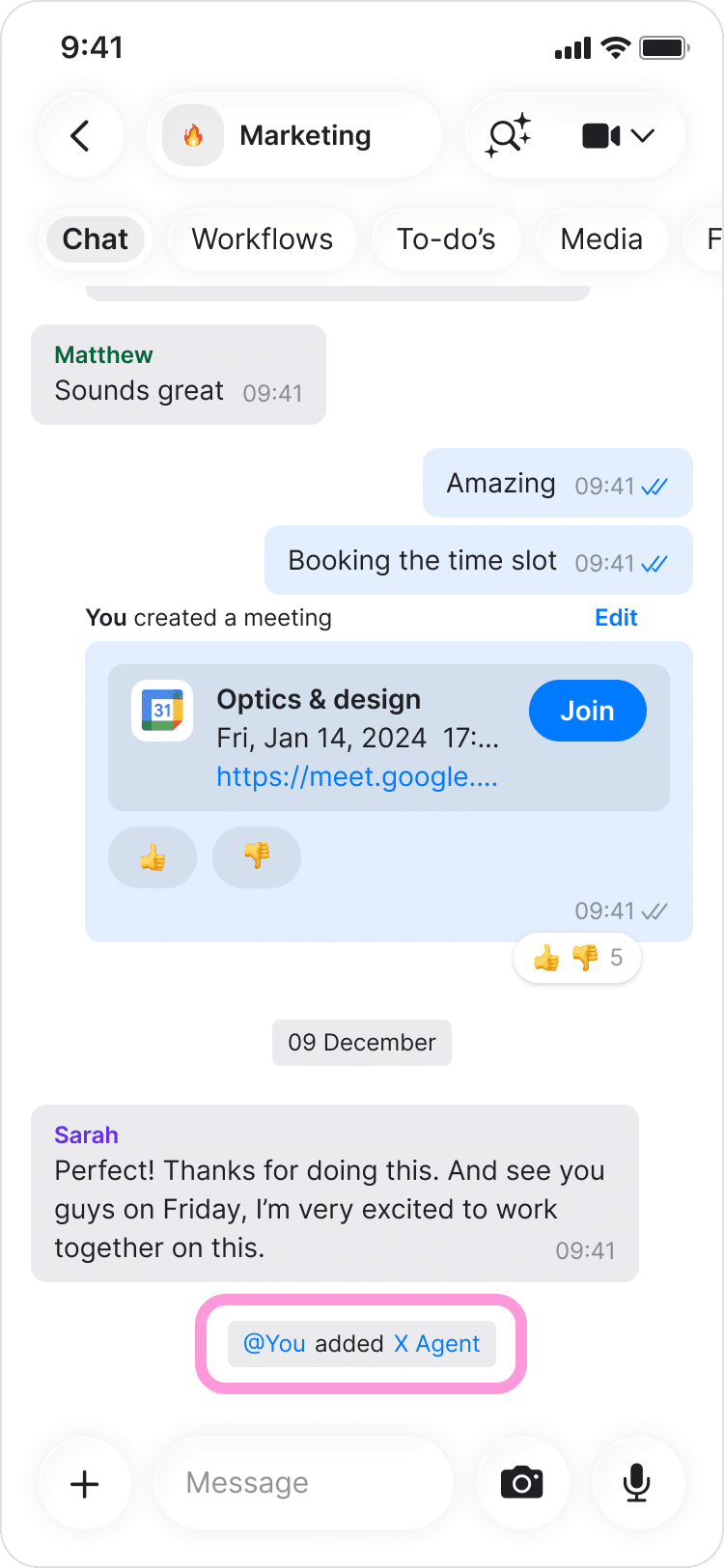
Talking to Your AI Agent in a Group Chat
Once more than one person is in a chat with the AI agent, anyone in that chat can ask the AI agent something, and the AI agent answers based on that chat.
When several people and several AI agents share one chat, everyone works from the same information at the same time. The people talk to the AI agents, the AI agents talk to each other, and everyone can see what each AI agent did.
Setting Permissions for a Shared AI Agent
Anyone you add to the chat can take any action you could take through that AI agent, in any tool it's connected to. They don't get your access to those tools directly, but they can ask the AI agent to use it.
So before adding anyone, check which of its connected tools it can write to rather than only read, and tighten any permission that feels too open for a second person to be relying on.
How to Make Sure Your AI Agent Is Secure
To make sure your AI agent is secure, check: what the AI agent can see, what the AI agent can do in each tool, how your logins are handled, who owns your data, and how you can review what the AI agent did.
Here's how to keep your agents secure in Zenzap:
- Only add the AI agent to the chats it needs. A Zenzap AI agent only sees the chats it's been added to and the tools you connect, not everything in your account. If a chat has nothing to do with the AI agent's job, keep the AI agent out of it.
- Set what the AI agent can do in each tool. For each tool you connect, choose Read Only, Require Approval, Always Allow, or Never Allow. The AI agent can never do more than your own account allows in that tool.
- Check how your logins are handled. You don't need to do anything here. The AI agent never sees your passwords or login keys.
- Check who owns your data. Your data belongs to you, and Zenzap never uses it to train AI models.
- Review what the AI agent did, and cut access if something looks wrong. You have a record of what the AI agent did in the Activity section of your agent’s settings, so you can check its actions any time. If something looks wrong, disconnect the tool, and the AI agent's access stops right away.
The Open Worldwide Application Security Project (OWASP) warns about two mistakes in its guidance for AI agents. Don't let an AI agent take a big action with nobody checking it, and don't give it more access than the job needs.
How to Prevent Your AI Agent From Taking Destructive Actions
A destructive action is one that the AI agent can't easily undo: deleting a record, sending a message that's already been delivered, moving money, or permanently overwriting data in a connected tool.
Telling an AI agent in plain language to avoid an action isn't a reliable safeguard, since a future request can be worded to lead it back to doing it anyway.
The actual fix isn't a stronger instruction, it's removing the capability. If a tool carries real risk, don't connect your everyday agent to it at all. If you really need that task handled, build a separate, narrow agent just for it. Your main agent then physically can't reach that tool, no matter how anyone phrases a request, because it doesn’t have access to it at all.
When Your AI Agent Should Ask First
Some actions carry real risk if they go wrong, which is why Require Approval applies per tool rather than to everything equally.
Keep Require Approval turned on for anything that:
- Deletes or permanently changes a record
- Sends a message or file outside your own accounts
- Moves money or updates a financial record
- Touches personal or sensitive data
Switch a tool to Always Allow only after watching the AI agent get that exact job right several times in a row, and only where a mistake would cost you little.
How to Prompt Your AI Agent
Two pieces of information turn a request into something the AI agent can act on: what result you want, and where that result should end up.
State the specific outcome rather than the general topic, and say where the result should go, whether that's back to you as a message, added as a to-do, or written into a connected tool.
“Compare this week's numbers to last week's and send me the difference” states both.
“Help me with reporting” states neither, which is why that one comes back generic.
If the AI agent gets something wrong, say so in your next message. That single correction applies to every similar request from then on.
How to Connect More Work Tools
New connections usually get added because the AI agent tells you, in the middle of handling a request, that it needs access to a tool it doesn't have yet.
You don't have to go into settings for that. Tag your AI agent, ask for what you want, and it prompts you to connect whatever it needs. Sign in with your own account, choose what it's allowed to do there, and it carries on with the request.
How Memory and Custom Instructions Work
Starting from zero in every conversation would mean re-explaining your preferences constantly. Zenzap's AI agents avoid that in two ways.
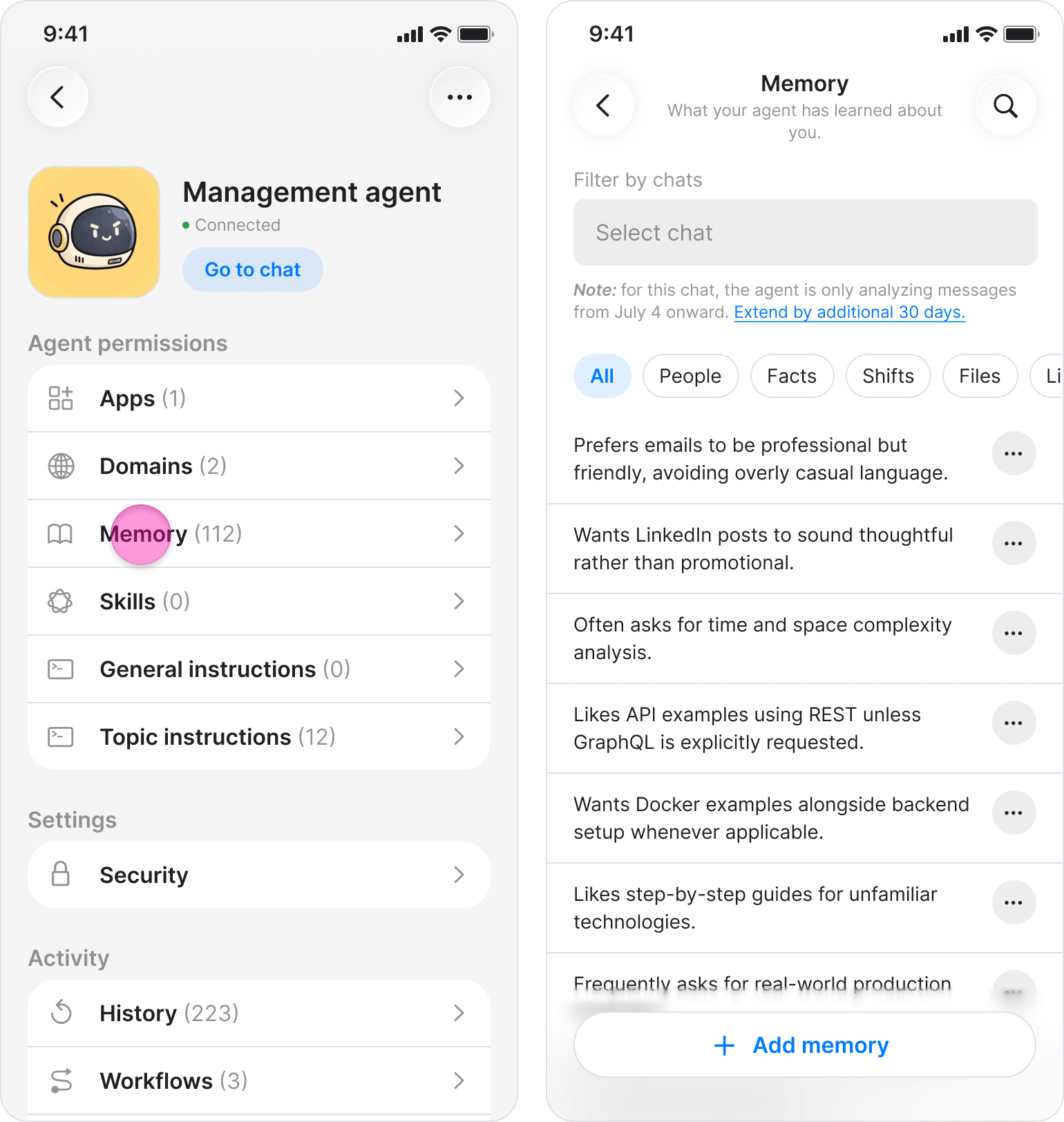
- Memory: What the AI agent remembers about your preferences and work.
- Custom instructions: Like a system prompt where you define what you want.
The AI agent remembers what you asked for last week, how you like results formatted, and what it already did. It also reads what's already been decided in a chat and learns over time.
Memory stays limited to the chat where the AI agent gathered it, so information from one conversation never surfaces in an unrelated one.
How to Build Workflows and Set Triggers
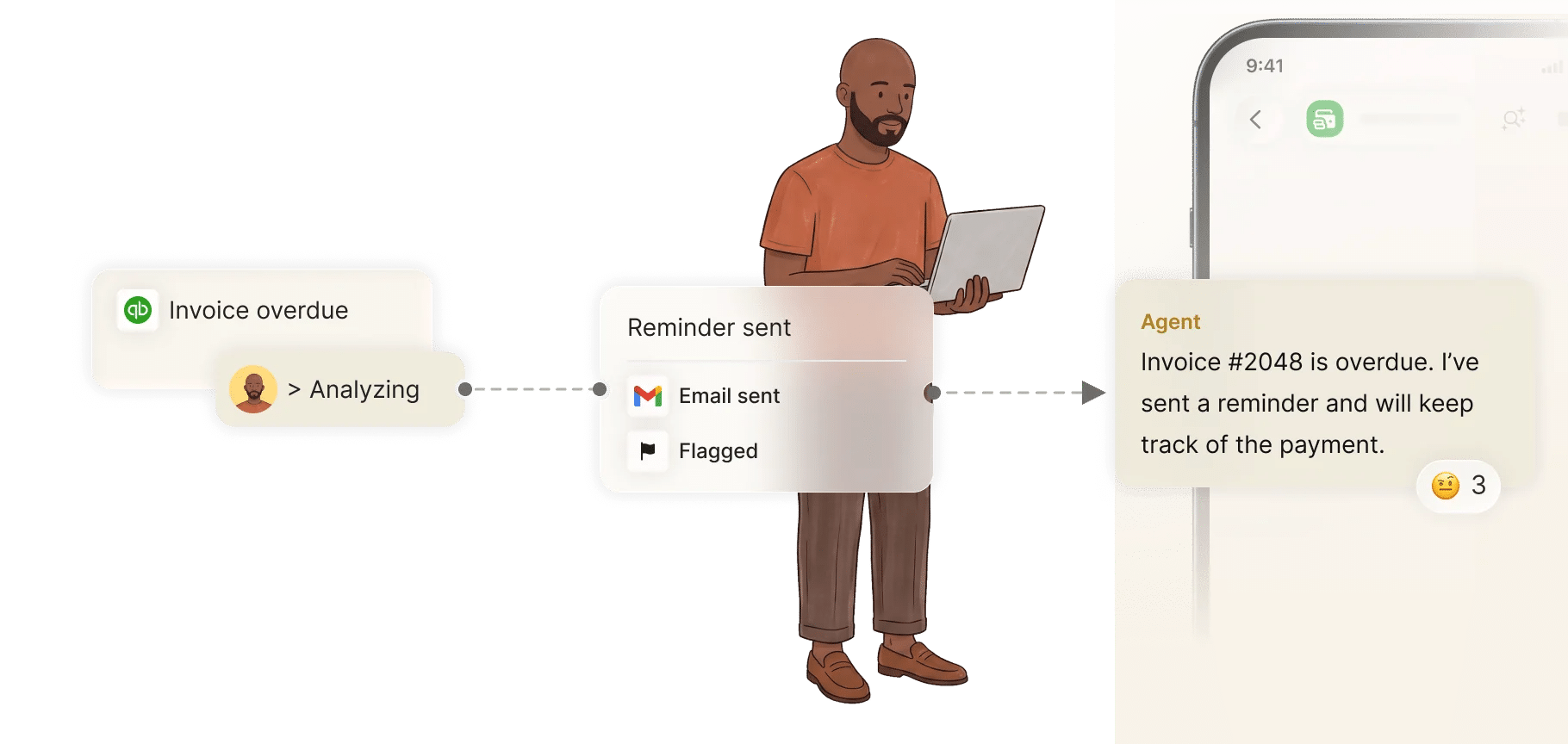
Asking the AI agent for something gets you an answer once. A workflow makes that same request run repeatedly on its own, without you asking again after you set it up.
A workflow is built up of a trigger that determines when it runs, and actions that determine what the AI agent does.
Zenzap supports two kinds of triggers:
- A schedule-based trigger runs the workflow at a fixed time, such as every day, every Monday, or every hour.
- An event-based trigger runs it the moment something happens, which can be in a chat or in a connected tool, such as a deal closing, a form being submitted, or a status field changing.
Setting up a workflow doesn't need a separate configuration screen. Just tell the agent what you want, in the chat, for example:
Every Monday at 8am, check the contract system for anything renewing in the next 30 days and tell me who owns it.
When a deal moves to closed-won, create the onboarding tasks and assign them to the account manager.
Every day at 5pm, pull today's sales total from the point of sale system and post it in this chat.
No visual canvas, and no mapping fields between two systems by hand.
Editing or updating a workflow works the same way. Just describe the change to the AI agent in the chat where that workflow lives, and it updates the timing, the trigger, or the condition. Turning one off takes a single message too.
Start by building one workflow automating a task you hate doing, that takes up time and effort that you dread doing.
How to Test Your AI Agent Before Rolling It Out
Before letting your AI agent act on anything that matters, watch it handle a few real requests and check three things.
- Does it select the correct record when two entries look similar?
- When a request is vague, does the AI agent ask what you meant instead of guessing?
- Does the result land where you expected, in the right chat, the right tool, and the right format?
If it gets something wrong, correct it once in your next message. That correction applies to every similar request going forward.
How to Optimize Costs
Zenzap optimizes costs for you automatically: it routes each request to the relevant LLM model depending on the complexity of the request, so you're never paying for more power than the task needs.
A lighter model is called for simpler requests, and a more powerful one only gets used when a request calls for deeper reasoning.
Another way that AI agents help you optimize costs is simply form the fact of turning manual work into automatic work. Asking for a report once saves you the time it takes to build it by hand. Turning that same report into a workflow that runs every Monday saves you that time every week, without you having to remember to ask.
How to Build Multiple AI Agents That Work Together
You can build as many AI agents as you want in Zenzap, each with its own name, job, tools, and access. Giving each job its own AI agent keeps things clear, because each AI agent only gets the tools that job needs.
To add another AI agent:
- Click the Agents tab
- Click Activate
- Name it after the job you want it handling
- Connect the relevant tools
Separate AI agents can complete a task together when a request needs both. They can hand off parts of the request to each other, then report the combined result back to you, with both AI agents' activity visible in the same chat.
Real Examples of Using an AI Agent
The clearest examples tend to be whatever task you'd notice immediately if it stopped happening. A Monday report that stops arriving, a renewal check that stops running, a reminder that never gets sent.
A few examples of workflows you can automate:
- A weekly sales comparison, sent automatically every Monday morning
- A contract renewal check, flagging anything expiring within the next 30 days
- Certification and license expiry tracking, with reminders sent automatically
- An end-of-day sales and labor summary, pulled from the point of sale system
- Shift coverage updates that sync to a scheduling tool once someone volunteers
- New deal onboarding, with tasks created the moment a deal closes
You can find more examples of workflows you can have your AI agent build for you in Zenzap's Workflows Library, organized by industry and by role.
Build Your First AI Agent Today
Naming your AI agent, connecting its tools, and giving it a task takes a few minutes from start to finish.
Once your AI agent is handling the task you dreaded most, that task stops requiring any manual work from you.
There's no code to write and no technical hire needed to get there. All it takes is naming the AI agent and connecting it to the accounts it needs.
Frequently Asked Questions
How long does it take to build an AI agent on Zenzap?
Building an AI agent on Zenzap takes a few minutes. The AI agent already exists when you open the app, so setup only involves giving it a name and connecting one tool to your own account.
On many other platforms, building an AI agent takes much longer, because you choose a language model, write instructions for it, and connect each tool yourself.
Do you need to code to build an AI agent on Zenzap?
No. Building and running an AI agent on Zenzap requires no coding at all. You give the AI agent a name, connect it to the tools you use, such as a CRM or a scheduling tool, and tell it what you want done in plain language.
What's the difference between a chatbot and an AI agent?
The difference between a chatbot and an AI agent is that a chatbot answers questions, while an AI agent takes action in your tools. Zenzap AI agent updates a record, sends a report, or flags something that needs attention, and keeps a record of what it did.
How is an AI agent different from regular automation?
Regular automation follows a fixed set of rules and breaks when a situation comes up that those rules weren't written to handle. An AI agent understands plain-language instructions directly, so describing what you want done is the entire setup.
What stops a Zenzap AI agent from doing something you didn't want it to do?
Every tool connected to a Zenzap AI agent has one of four permission settings: Read Only, so it can look but not act; Require Approval, so it shows you its plan before doing anything; Always Allow, so it acts without checking; or Never Allow, so it has no access to that tool at all.
Can other people use your AI agent on Zenzap?
Yes. Adding someone to the chat where your AI agent lives gives that person access to the same AI agent, connected to the same tools. Once they're in that chat, they can ask it questions directly and see everything it does in response, without any separate setup on their end.
Can you see what a Zenzap AI agent did after the fact?
Yes. Every action a Zenzap AI agent takes gets logged automatically. That log gives you a record you can review at any time, along with a way to immediately cut off its access to any connected tool if something looks wrong.


