

.svg)

.svg)

.svg)

.svg)

.svg)

.svg)

.svg)
.svg)


























I used to spend hours bouncing between chat apps, emails, and meetings just to keep up with my teams. However, I was still missing important updates and conversations. My frustration led me to try more than 15 team communication apps. If you’re not satisfied with your current communication app or simply want to explore new ones, my findings will help you.
In this article, I’ll share the seven best communication apps for teams that helped me streamline collaboration, stay organized, and save hours every week. In each section, I’ll highlight the pros, cons, and standout features. I’ll also reveal my methodology for choosing these services in case you want to test a few yourself.
Key Takeaways: Best Team Communication App
- Zenzap is the best overall team communication app: Zenzap combines chat, tasks, and AI in a single simple workspace, helping teams follow up on conversations instead of losing track of them. Start a 14-day free trial today to get a first-hand feel for Zenzap features.
- Google Chat is the best simple option: Google Chat is simple, clean, and integrates naturally if your team already uses Gmail and Google Workspace.
- Slack is best for integrations and flexibility: Slack is ideal for teams that rely on connecting multiple tools in a single communication hub.
- How do team chat apps work?: Effective team communication apps provide a central platform for all team members to communicate. They provides features such as chat, video and audio calls, and powerful search to help use stay in touch and search for past conversations and relevant information easily.
How I Chose the Best Team Communication App
I chose the seven best team chat apps using the following criteria:
- Hands-on testing: I personally used and tested more than a dozen team communication apps across different teams and workflows.
- Ease of use: I checked whether each provider had apps for desktop and mobile devices and noted how easy they were to set up and navigate.
- Core features: I looked for key functions like messaging, channels, file sharing, search, and notifications.
- Integrations: I chose only tools that offered integrations with numerous apps.
- Pricing and value: I compared the pricing of the various apps to see which ones offer the best value for money. I also looked for free plans, free trials, and money-back guarantees.
- User feedback: I factored in reviews and feedback from other users, including some of my work colleagues, to cross-reference my own experience and ensure consistency.
Comparison Table: 7 Team Communication Apps
The table below will help you compare my selection of the top seven communication apps at a glance.
The Top 7 Team Communication Apps Based on Real Testing
Based on my hands-on testing, the seven best team chat apps are Zenzap, Microsoft Teams, Slack, Discord, Google Chat, Zulip, and Element.
- Zenzap — The Overall Best Team Communication App
Pros:
- Unlimited message history
- Project-based chat and folders
- Easy-to-use, mobile-first interface
- Up to 100 AI agents
Cons:
- Smaller integration ecosystem than competitors
Zenzap earns the top spot in my book because it helps teams enjoy structured, distraction-free conversations. It provides an all-in-one workspace where conversations, tasks, schedules, and files live together. The centralized workspace enables teams to communicate and manage simple projects without constantly switching between apps.
The following Zenzap features stood out during testing:
Structured Chats for Chaos-Free Communication
I like that you can organize conversations in folders. For example, you can create separate communication folders for different projects, teams, or departments in an organization, such as marketing, sales, HR, customer support, operations, and more. You can then add participants and create direct messages and topic-based group channels within each folder.
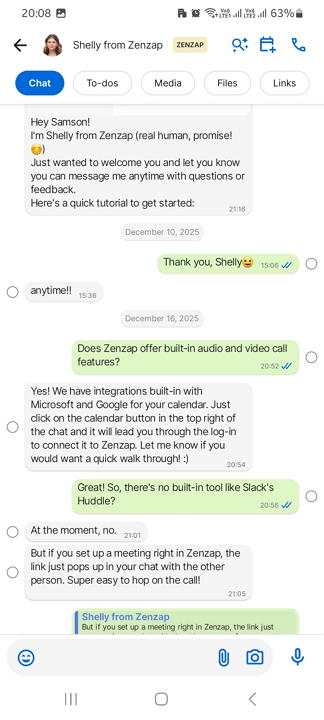
Caption: Zenzap has an intuitive mobile UI and message show read receipts so you can tell when the message is read.
Alt text: Zenzap mobile UI
The folder-based chat organization helps keep related conversations in one place. It also brings order to the chaos, ensuring teams can instantly find relevant discussions without having to dig through endless channels. The structured conversations make Zenzap especially useful for teams managing complex projects or working across multiple departments.
Moreover, you can turn a topic into an announcement channel. In an announcement channel, only topic admins can send messages. The one-way topic channels come in handy when you want to share updates, roll out policy changes, and keep everyone aligned on critical information without distractions or off-topic replies.
Built-In Task Management
Zenzap connects communication directly to execution in a way most tools don’t. Instead of letting chats pile up, you can turn any message into a task, assign it, and keep track of it without leaving the conversation.
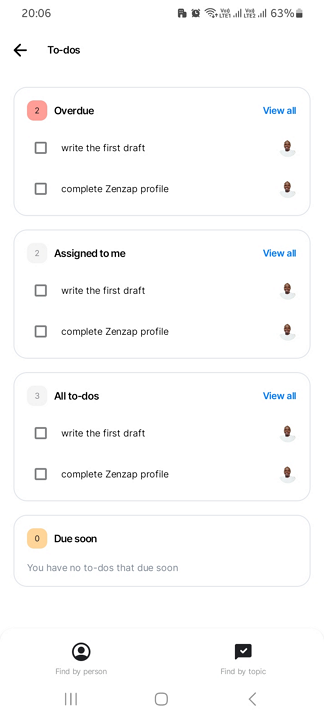
Caption: Zenzap enables employees to manage their to-dos on their smartphones.
Alt text: Zenzap to-dos on mobile devices
I really like that tasks live in the chat, which helps keep feedback, assets, and decisions in one place. This ensures nothing is lost between chat and execution, solving the common problem of discussion that never turns into action.
However, I did note that Zenzap's task management lacks advanced features for managing complex projects. For example, there are no customizable project views, deep analytics, or task dependencies, which you would typically find in dedicated project management tools.
For this reason, I’d recommend Zenzap for simple project management. However, if you do need to manage complex projects and team communication in one hub, you can integrate Zenzap with your go-to project management platform.
Easy to Manage User Access and Permissions
I love how easy it is to control who can create topics, add or remove people from chats, save photos or videos, or create polls. Instead of navigating complicated settings, configuring everything is as easy as toggling a button. The real benefit of using these controls is to help manage access to company information, enhancing security and privacy.
Even better, chat folders are invite-only channels accessible only to approved members. The structured permission system helps control who sees what, and is especially useful in growing organizations where teams overlap across departments or projects. This keeps collaboration open where necessary and protected where it matters most.
I was impressed by Zenzap’s practice of storing all company data and files in secure cloud storage, not on employees' local devices. This way, everything remains under your control, and you don’t have to worry about employees walking away with sensitive conversations when they leave the organization.
Plus, if an employee leaves, you can revoke their access to conversations and files with a single click. No more sending “Please delete the group chat” messages to unresponsive ex-teammates: You’re always in control of off-boarding.
Other Features I Liked
- Polls: Let teams quickly vote in structured chats. Polls speed up decisions, boost engagement, and eliminate confusion from group discussions.
- Centralized file sharing: Store and access files directly in conversations, keeping everything in context.
- Calendar and scheduling integration: Plan meetings and track availability without switching apps.
- Cross-platform sync: Access chats, tasks, and files seamlessly across mobile, desktop, and web.
- AI agents: Connect AI agents to automate tasks and share the full context of conversations.
Zenzap Pricing
Zenzap is one of the most affordable team communication apps. Small teams can subscribe to the free-forever plan to use Zenzap’s features without paying a dime.
Paid plans start at just $3 per seat per month, with larger teams paying as little as $0.50–$1 per user, making Zenzap highly cost-effective as you scale. Start Zenzap’s 14-day free trial today to keep your entire team connected, on the same page, and productive.
- Microsoft Teams — Best for Enterprises Already Using Microsoft 365
Pros:
- Up to 300 participants
- Integration with more than 1,900 apps
- Advanced video-conferencing features
Cons:
- Slow Windows app installation
- Overwhelming web and mobile interfaces
Microsoft Teams is a great communication app, especially if you’re already using Microsoft tools. It works seamlessly with apps like Word, Excel, PowerPoint, and Outlook. You can open, edit, and collaborate on documents in real time without jumping between platforms. Microsoft Teams also supports more than 1,900 integrations, perfect for teams that rely on many apps.
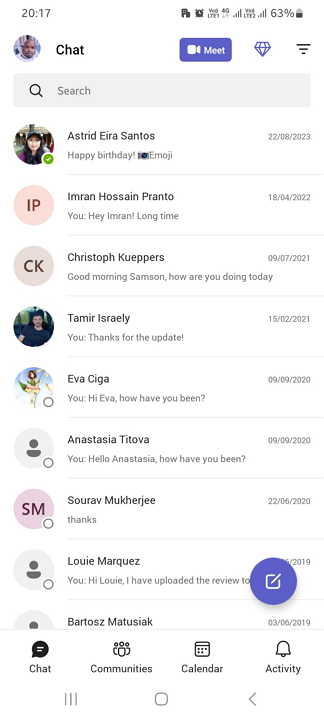
Caption: Miscrosoft Team’s Android app is simple, streamlined, and intuitive.
Alt text: microsoft teams android app
If meetings are a big part of your day, you can rest easy: Teams handles these well, too. With features like breakout rooms, live captions, and webinar recording, Teams gives you everything you need to run smooth, professional calls without extra tools.
Microsoft Teams Key Features
- Seamless Microsoft 365 integration: Collaborate in Word, Excel, PowerPoint, and Outlook in real time without switching apps.
- Organized communication with channels: Structure conversations by project, team, or topic to keep everything clear and easy to follow.
- Powerful video meetings: Host meetings with breakout rooms, live captions, recordings, and webinar capabilities.
- Wide app integration: Connect more than 1,900 apps, including project management tools and customer relationship management (CRM) systems, to your workflow.
- Unified workspace: Gather chats, files, meetings, and notifications in one place so you can stay focused and in sync.
Microsoft Teams can feel overwhelming, especially for new users who are unfamiliar with the Microsoft ecosystem. It might require extensive onboarding and training for new users. In addition, Microsoft Teams can occasionally lag in large organizations with many files and integrations.
Microsoft Teams Pricing
Microsoft Teams has a limited free plan that you can use to test the waters. Its Essentials and Enterprise plans are priced on a per-user model. Microsoft Teams pricing starts at $4 per user per month when purchased separately or is included with Microsoft 365 plans. You can try each plan for risk-free for 30 days with no hidden costs.
- Free: 1 person, 5GB of storage, group calling for up to 60 minutes and 100 participants
- Microsoft Teams Essentials: $4 per user per month, 300 participants per meeting, 10GB of cloud storage per user, unlimited chat, unlimited meetings with recordings and transcripts.
- Microsoft Teams Enterprise: $8.55 per user per month, 1,000 participants per meeting, 10GB of cloud storage per user, unlimited chat, unlimited meetings with recordings and transcripts.
- Slack — Best for Fast-Moving Teams That Rely On Integrations
Pros:
- Simple, real-time messaging
- Extensive integrations library
- Powerful search tool
Cons:
- Basic built-in calling and meeting features
- Complex user experience, especially on mobile
Slack stands out for how simple and fast it makes everyday communication feel. Everything is organized into channels, so you can separate conversations by team, project, or topic without things getting messy. Threads keep discussions focused, so you don’t have to dig through long chat histories to find what matters.
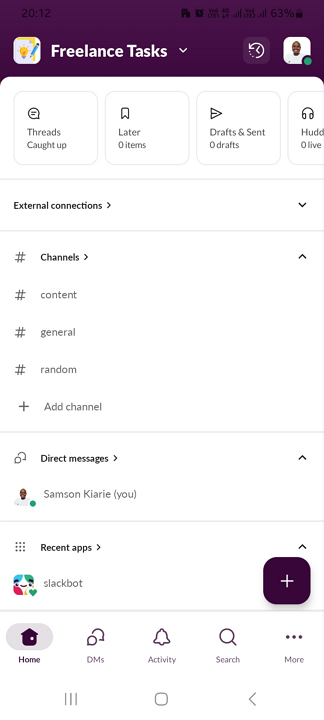
Caption: Slack Android app’s UI gets easily cluttered as teams add channels and external connections.
Alt text: slack android app
You can connect Slack to thousands of tools, automate small tasks, and build workflows that match how your team already works. It offers more than 2,600 integrations, the most of any tool I tested. What’s more, Slack’s apps are clean, intuitive, and easy for beginners to navigate.
Slack Key Features
- Channel-based messaging: Create dedicated spaces for teams, projects, or topics so conversations stay structured and easy to navigate.
- Threaded conversations: Reply within messages to keep discussions contained and prevent chat clutter.
- Extensive app integrations: Connect tools like Google Drive, Asana, and Zoom to bring updates and workflows directly into Slack.
- Workflow builder: Automate routine actions like onboarding messages or approval requests and build AI-powered workflows.
- Powerful search: Quickly find messages, files, or links from past conversations, even for large teams.
Slack can feel overwhelming for busy teams. Messages can pile up quickly, making it easy to miss important updates without careful channel management. Slack also relies on integrations for features like video meetings and deeper collaboration, which may not suit teams looking for an all-in-one solution.
Slack Pricing
Slack uses a per-user pricing model. It’s affordable for small teams but can become costly as you scale and rely on more advanced features. You can request a free trial by contacting Slack’s support team.
- Free: 90 days of message history, up to 10 apps, 1:1 meetings, 1:1 external messages
- Pro+: $4.38 per user per month, unlimited message history, unlimited app integrations, group meetings, group external messages, basic AI summaries.
- Business+: $9 per user per month, unlimited message history, unlimited app integrations, group meetings, group external messages, advanced AI summaries.
- Enterprise+: Contact sales for pricing, unlimited message history, unlimited app integrations, group meetings, group external messages, enterprise-grade AI.
- Discord — Best for Community-Driven Team Communication
Pros:
- Always-on voice channels for instant, casual communication
- Highly customizable servers with roles and permissions
- Generous free plan
Cons:
- Limited native integrations and productivity tools
- No read receipts
Discord is built for teams that prefer to have more casual discussions rather than schedule formal meetings. You can jump into a voice channel at any time, have a quick conversation, and leave when you’re done. This makes collaboration feel more natural, almost like being in the same room.
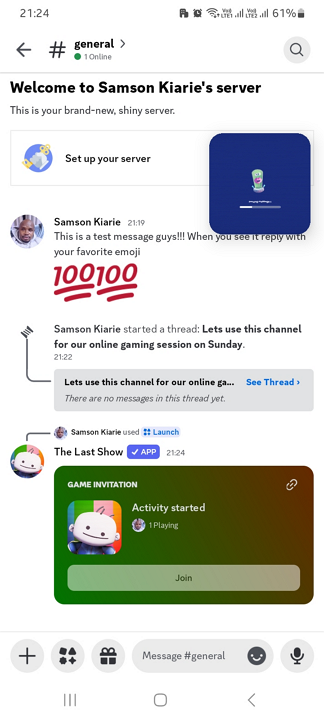
Caption: Discord’s Android app is a simplified version of its Windows app that gives users one of the easiest way to stay in touch.
Alt text: discord android app
What sets Discord apart is its customization. You can structure the server exactly how you want, with channels for different topics and roles that control who sees what. It works especially well for teams or communities that want a more open, continuous flow of communication rather than a rigid system.
Discord Key Features
- Always-on voice channels: Join or leave voice conversations instantly without scheduling meetings, making communication faster and more spontaneous.
- Server-based organization: Create dedicated servers with channels for different topics, teams, friends, parents, or projects to keep everything organized.
- Roles and permissions: Add members via emails and phone numbers, and customize their access levels to retain control over who can view, post, or manage content.
- Screen sharing and streaming: Share your screen or stream content in real time for collaboration, demos, or presentations.
- Generous free plan: Discord is accessible for growing teams and large groups alike, offering strong core features at no cost.
Discord isn’t built specifically for business environments. It lacks structured tools like task management, productivity tools, deep integrations, and formal meeting features. As conversations grow, it may become harder to keep everything organized if you don’t create dedicated channels.
Discord Pricing
Discord has user-focused pricing rather than a per-seat business pricing model. Features like apps and integrations are generally free and not capped in the same way as traditional workplace tools.
- Free: Unlimited message history, unlimited servers, voice and video calls, basic community features.
- Nitro Basic: $2.99 per month, adds perks like custom emojis across servers, larger file uploads, some personalization features.
- Nitro: $9.99 per month, HD streaming, higher upload limits, animated avatars, server boosts, more customization options.
- Server Boosting: $4.99 per boost per month, enhances specific servers with better audio quality, more emoji slots, and improved performance (often bundled with Nitro).
- Google Chat — Best For Businesses That Already Use Google Workspace
Pros:
- Works directly in Gmail
- Real-time collaboration with Docs, Sheets, and Drive
- Simple, uncluttered interface that’s easy to manage
Cons:
- Limited native integrations and productivity tools
- No true free tier
Google Chat keeps communication simple but structured with features that help you stay organized. You can create dedicated Spaces for different teams or projects, and use threaded replies to keep conversations from becoming messy. Instead of scrolling through long chats, you can follow specific discussions and quickly find what matters.
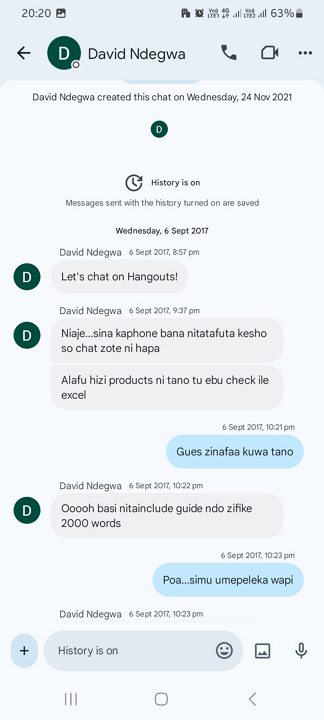
Caption: While Google Chat is exceptionally easy to navigate, it’s not a good fit for real time communication.
Alt text: google chat android
Google Chat is built for hands-on collaboration and feels natural if your team is already using Google Workspace. You can start conversations directly from Gmail, share files from Google Drive instantly, and collaborate on Docs without switching tabs.
Google Chat Key Features
- Spaces for team organization: Create dedicated areas for projects or teams to keep communication structured.
- Threaded conversations: Group replies under specific messages to avoid clutter.
- Real-time collaboration: Share and edit documents directly in chats.
- Task management: Assign tasks and track progress without leaving the conversation.
- Multi-device access: Stay connected across web and mobile platforms.
Google Chat may feel too minimal for teams that need advanced communication features, deep customization, or a wide range of integrations. It works best for straightforward collaboration, but it can fall short in more complex or fast-scaling environments.
Google Chat Pricing
Google Chat keeps its pricing simple by bundling the app into Google Workspace plans. Google Chat pricing starts at $7 per user per month when included with Google Workspace. As you move up tiers, you get more storage, stronger security, and better collaboration features. A 14-day free trial is available to try out the paid plans.
- Free: Basic messaging with 1:1 and small group chats, access to Spaces, limited message history and admin controls.
- Business Starter: $7 per user per month, Google Chat with Gmail and Google Meet integration, group conversations, Spaces for collaboration, standard security features.
- Business Standard: $12 per user per month, larger meeting capacity, more storage, enhanced collaboration and admin controls.
- Business Plus: $18 per user per month, increased storage, advanced security, stronger compliance features for growing teams.
- Zulip — Best For Teams that Need Threaded, Organized Discussions at Scale
Pros:
- Works directly in Gmail
- Real-time collaboration with Docs, Sheets, and Drive
- Simple, uncluttered interface that’s easy to manage
Cons:
- Limited native integrations and productivity tools
- Old-fashioned interface
Zulip is built for teams that have many conversations and need structure to keep everything organized. It uses streams and topics instead of just channels, so every message belongs to a specific subject. This makes it much easier to follow discussions without getting lost, even when multiple conversations are happening at the same time.
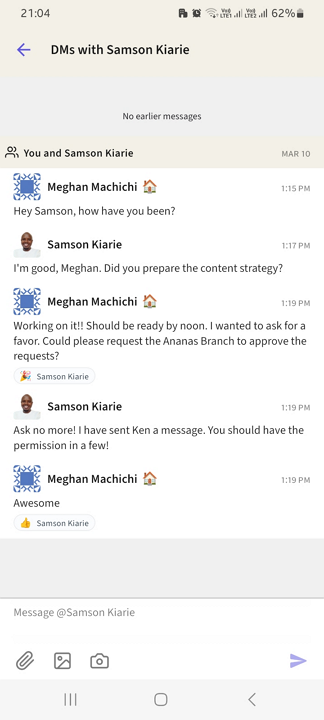
Caption: Zulip Android app UI looks dated, but its ability to group messages by topics is excellent.
Alt text: zulip android app
I recommend Zulip to teams that prioritize privacy. It offers a self-hosted plan that allows you to retain full control of your data. Even if a hacker were to gain access to Zulip’s servers, they wouldn’t be able to see your data. In addition, you can easily move from Zulip’s cloud hosting to a self-hosted server, thanks to its data export and import features.
Zulip Key Features
- Streams and topics: Organize messages into streams (similar to channels) and topics (specific discussions), keeping conversations clear and employees engaged.
- Threaded conversations by default: Every message is part of a topic, so discussions don’t overlap or end up buried.
- Powerful search: Find messages quickly by topic, keyword, or user, even in large teams.
- Message history: Access complete conversation history to easily review past decisions.
- Open-source flexibility: Teams can self-host and customize Zulip for more control over their setup.
Zulip’s structured approach can feel unfamiliar at first, especially for teams used to simpler chat tools. Streams and topics take some getting used to, and the interface may not feel as polished or intuitive as more mainstream platforms.
Zulip’s Pricing
Zulip has two sets of plans: Zulip Cloud and Self-Hosted. Here’s a breakdown of both plans:
Zulip Cloud:
- Free: 10,000-message history, up to 5GB of storage, guest accounts.
- Standard: $6.67 per user per month, unlimited search history, up to 5GB of storage per user, custom groups, priority support.
- Plus: $10 per user per month, all standard plan features, up to 25GB per user, custom domains, single sign-on (SSO) with SAML (Okta, OneLogIn, etc.).
Zulip Self-Hosted:
- Free: Complete team chat solution, with all Zulip features included.
- Basic: $3.50 per user per month, complete team chat solution with all Zulip features included, unlimited mobile notifications, and support for Zulip's open-source development.
- Business: $6.67 per user per month, 25 users minimum, all Basic features.
- Element — Best For Privacy-Focused Teams and Decentralized Communication
Pros:
- End-to-end encryption for secure chat
- Decentralized network with full data ownership
- Flexible rooms for organizing conversations
Cons:
- Can feel technical and harder to set up
- Steep learning curve
Element is built for teams that care about privacy and control. Instead of relying on a single company’s servers, it runs on the Matrix protocol, which lets you communicate across different servers while still owning your data. This makes Element feel less like a typical chat app and more like a secure communication network that you control.
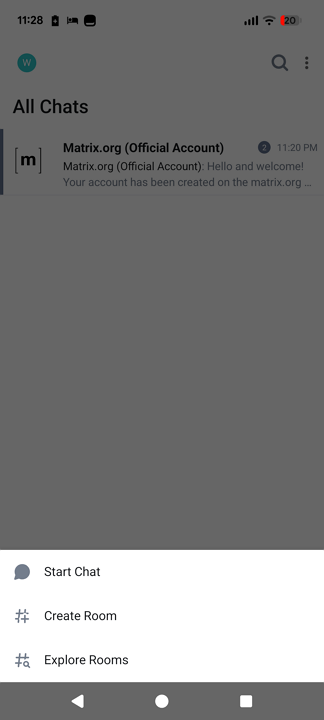
Caption: You can start a chat, create a room or explore rooms in your Element Android app.
Alt text: element android app
What sets Element apart is its flexibility. You can host it yourself, choose where your data lives, and customize how your communication works. Conversations happen in “rooms,” which function like Slack channels, making it easy to organize discussions by team or project. It’s especially useful for organizations that need secure communication without being locked into one provider.
Element Key Features
- End-to-end encryption: Secure chat and calls by default, ensuring private communication.
- Matrix-based network: Communicate across servers, with full control over your data and infrastructure.
- Room-based organization: Create rooms for teams, projects, or topics to keep conversations structured.
- Federation and bridging: Connect with platforms like Slack or WhatsApp to communicate effectively.
- Cross-platform access: Available on web, desktop, and mobile for consistent communication from anywhere.
Element is not the simplest tool, nor is it trying to be. Rather, it is built for security and control. Element can feel a bit technical at first, especially if you’re used to apps that work straight away. However, if privacy matters or you don’t want your team tied to one provider, Element offers a level of freedom that most tools do not.
Element Pricing
Element’s pricing is flexible and depends on how much control and support you need. Element's business plans start at $5 per user per month for a fully managed cloud-based option.
- Free: Access core features on public Matrix servers, including encrypted messaging, voice and video calls, and room-based collaboration.
- Element One: $5 per user per month, managed hosting with better performance, easier onboarding, and admin tools without needing to self-host.
- Business/Enterprise: Custom pricing, advanced security, compliance support, dedicated infrastructure, and enterprise-grade support for larger organizations.
Verdict: Which Is the Best Team Communication App?
Picking a team communication app usually comes down to what actually fits your day-to-day work. Some tools are great for integrations, while others are ideal for flexibility or privacy. However, many can end up feeling too heavy or a bit messy once you use them regularly.
Zenzap keeps things simple. It’s built to help your team stay organized and communicate without distractions. Instead of switching between tools or digging through endless threads, everything stays in one place so you can focus on the work rather than the app. Take Zenzap for a test run using the 14-day free trial.
FAQs: Team Communication Apps
1. Which team communication app is best for small teams?
Zenzap is best for small to large businesses that want a simple, organized, and distraction-free way to communicate without unnecessary complexity.
2. Are team communication apps secure?
Most leading team communication apps are secure, implementing encryption and admin controls, but security levels vary. Tools like Element prioritize end-to-end encryption, while others focus on enterprise security features.
3. What is a team communication app used for?
A team communication app is used for instant messaging, sharing files, providing team updates, making phone calls, and collaborating with your whole team in real time so work can move faster.
Take Control of Your Team Communication
Chat, organize, and get work done - all in one place.