
.svg)

.svg)

.svg)

.svg)

.svg)

.svg)

.svg)

.svg)

.svg)

.svg)
.svg)

























How to Remove Someone from an iMessage Group Chat
Steps to Remove Someone from an iMessage Group Chat
- Open the group chat in the Messages app.
- Tap the group name or icon at the top of the thread.
- Scroll through the list of contacts.
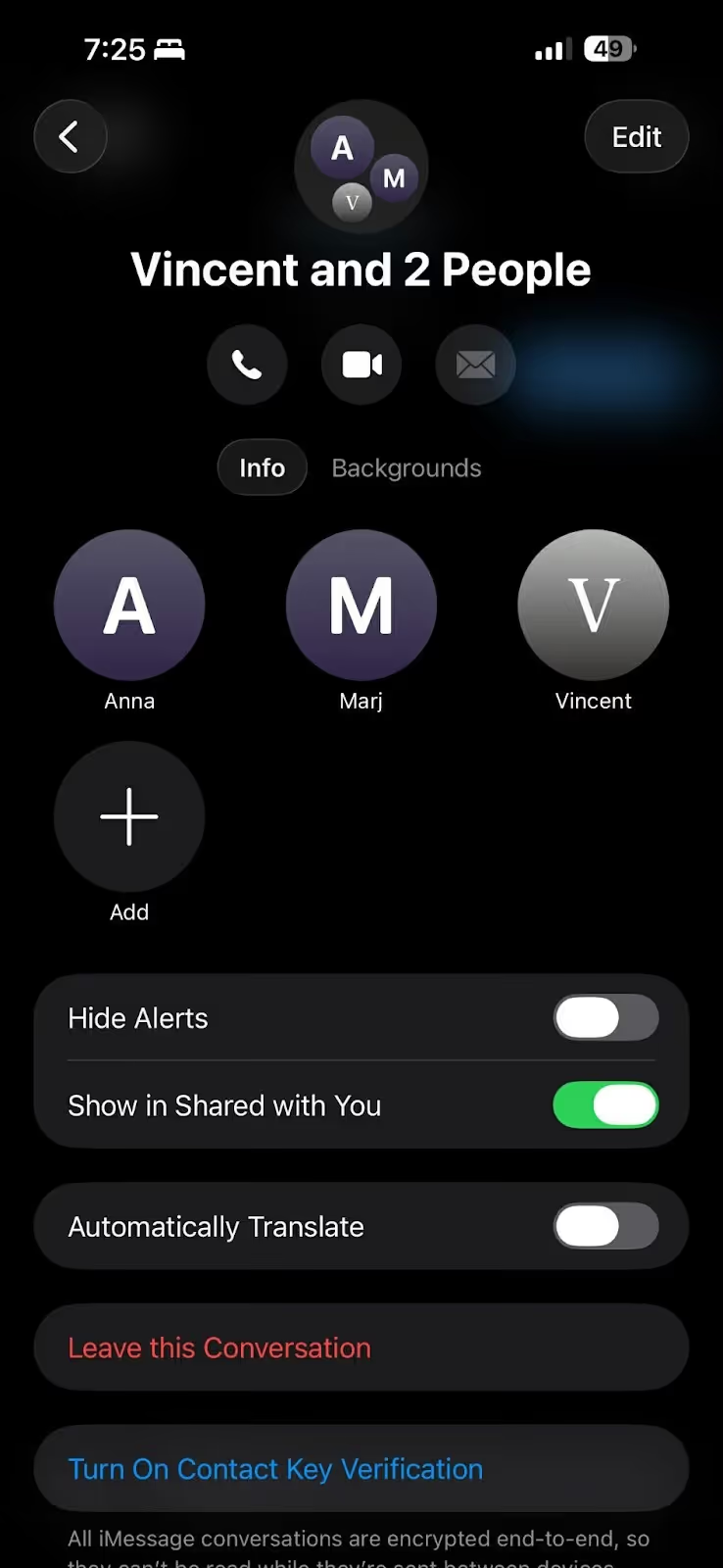
- Tap and hold the person you want to remove.
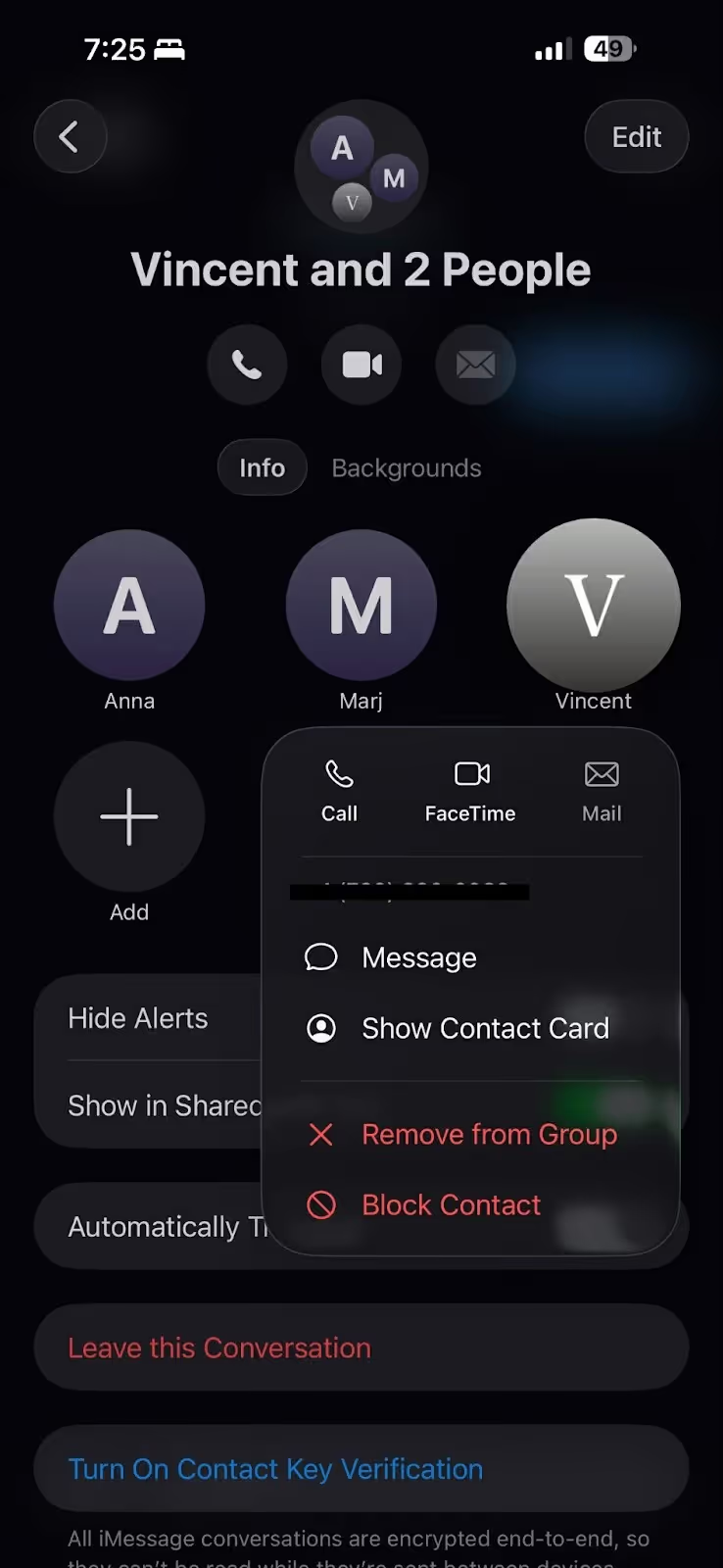
- Tap Remove from Group.
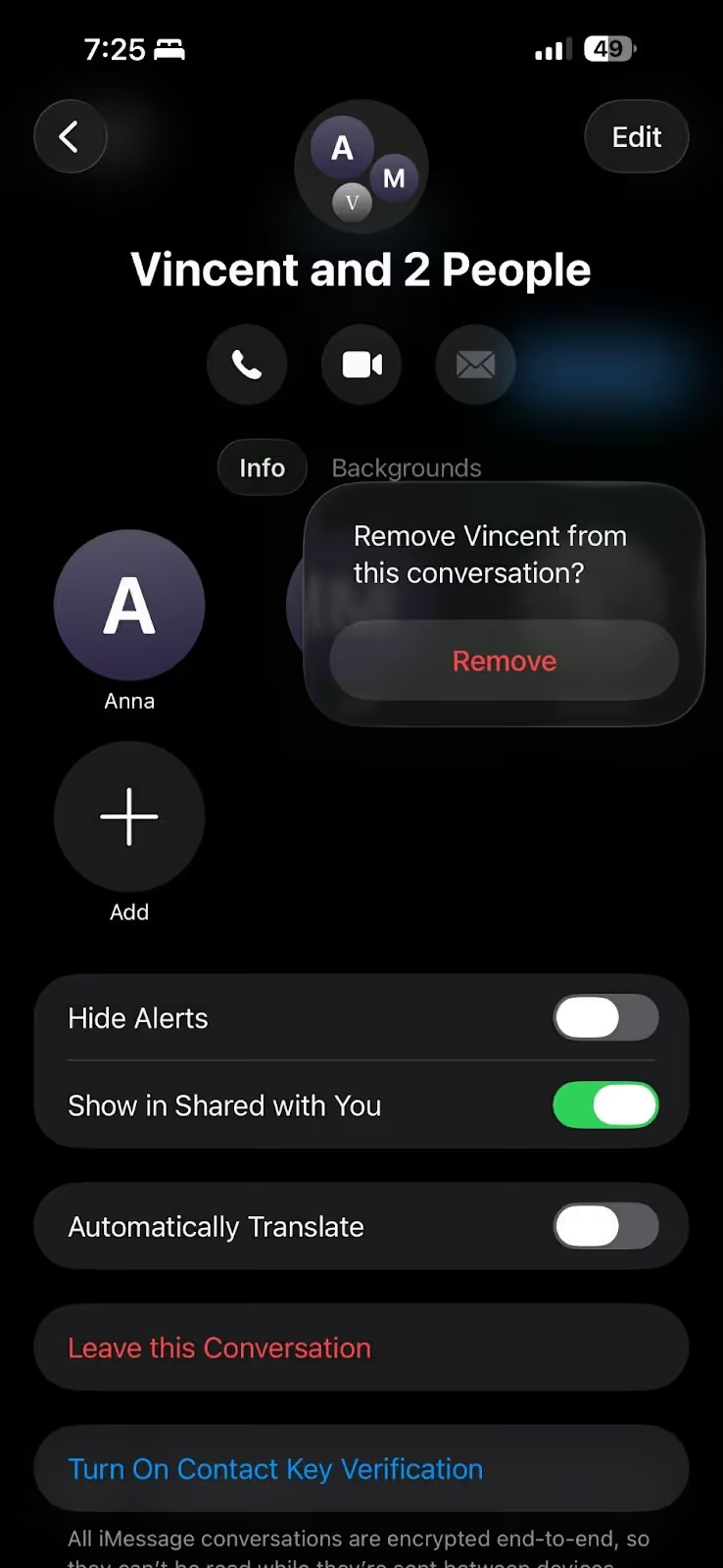
- Confirm by tapping Remove.
Things To Keep In Mind About iMessage Group Chats
- Removing someone from the group does not automatically remove access to shared projects in third-party apps linked to the conversation.
- If the “Remove” option is grayed out, there may be fewer than four people in the group. In these cases, consider creating a new group without the removed participant.
The Problem with Using iMessage for Work
iMessage is not built for work, so using it for team communication can make it hard to manage access and keep conversations secure and organized when roles change or team members leave.
Here’s what makes removing someone from an iMessage group chat challenging:
Old Messages Stay Accessible
Even after someone is removed from an iMessage group chat, they can still see all messages, files, and media that were shared before their removal.
Limited Visibility And Control
You cannot see the iMessage group chats that you are not part of, so you won’t know how many chats someone is in. If your team has multiple group chats, you need to manually remove them from each chat, as there is no way to remove them from all chats at once.
Even after removal, you cannot control what happens next. iMessage does not let you set rules for who can create group chats or control who can add team members. Anyone in the chat can add the removed person back or forward messages and files, so information may still be shared even after their access is supposed to end.
No Way to Remove Files
When people use personal communication apps like iMessage, everything stays saved on their phone storage. Even after leaving a group, they can still see all the chat history, messages, and files that were sent until that point. There is no way to remove access, delete it remotely, or prevent it from being reused or shared elsewhere.
Removed Participants Can Still See Personal Info
Even after you remove someone from an iMessage group chat, they can still see all messages and participants from before they were removed. That means they can still see everyone’s names and phone numbers, even though they’re no longer in the chat. This can lead to poaching and data leaks.
Why You Should Use A Professional Team Chat App for Work
When you use iMessage for work, it’s hard to control who has access, keep conversations secure, and separate work messages from personal ones. A professional work chat app helps you stay organized and gives you better control over your team conversations.
Zenzap is a professional work chat app built specifically for team communication. It makes it easier to manage group chats, control who can join or stay in a conversation, and protect work-related information. It also helps keep work messages out of your personal chats, so work stays at work.
Here’s how Zenzap solves common problems you experience when removing people from iMessage group chats:
Removed People No Longer Have Access
When you remove someone from Zenzap, they immediately lose access to all the group chats they are in. This ensures important information is no longer accessible once someone leaves.
One-Click Removal
With Zenzap, you don’t need to remove someone from each group chat one by one. When you remove a user from the company workspace, they lose access to all messages, group chats, files, and media.
Files And Media Stay Under Company Control
All files, photos, and links are stored securely in the company-controlled cloud on Zenzap. If someone leaves, their access is removed right away. This way, the business always stays in control of company data.
Personal Information Stays Private
When someone is removed from Zenzap, they no longer have access to all the company contacts. This prevents them from reaching out to former colleagues or attempting to poach team members, keeping your team secure even after someone leaves.
Take Full Control When Someone Leaves
Stop removing people one by one in iMessage.
With Zenzap, removing a user from the workspace instantly removes access to all messages, group chats, files, and media.
Zenzap is as easy to use as iMessage but built for work. It includes calendar, to-dos, video calls, and integration with all your work tools.
Admins have full control over group membership and permissions, including who can invite people to join a group, who can download files or photos, and how information is shared.
One action keeps your team’s communication secure, organized, and fully under your control. No more chasing people across multiple iMessage group chats.

Take Control of Your Team Communication
Chat, organize, and get work done - all in one place.
Other Blog Posts