.svg)

.svg)

.svg)

.svg)

.svg)

.svg)

.svg)

.svg)

.svg)

.svg)
.svg)


















How to implement Zenzap's secure, mobile-first workspace for real-time messaging and file sharing across all teams
Three steps fix the handover gap and keep work controlled.
When a shift changes, the last instruction is usually the one people cannot find. It sits in a personal chat thread, a reply chain in email, or a folder no one checks on mobile. That is when handovers break, files drift, and the wrong version becomes the working version.
A secure, mobile-first workspace solves that failure point by putting real-time messaging and file sharing in one governed place. Zenzap gives managers, directors, and frontline teams a way to keep conversations structured, keep files attached to the work, and keep admin control centralized. If your team can text, they can use Zenzap from day one, with no training required.
Table of Contents
- How Secure Mobile-First Workspaces Fail When Communication Is Fragmented
- How to Implement Zenzap Across All Teams
- How to Lock Down Mobile Access Without Slowing Work
- How to Keep Files Attached to the Conversation
- How to Roll Out Zenzap by Location, Team, and Role
- Key Takeaways
- FAQ
- About Zenzap
How Fragmented Communication Breaks Team Execution
Fragmented communication fails at the point of action, not at the point of sending. The message was sent, but the person who needed it never saw it, could not find the file, or got it on the wrong device at the wrong time.
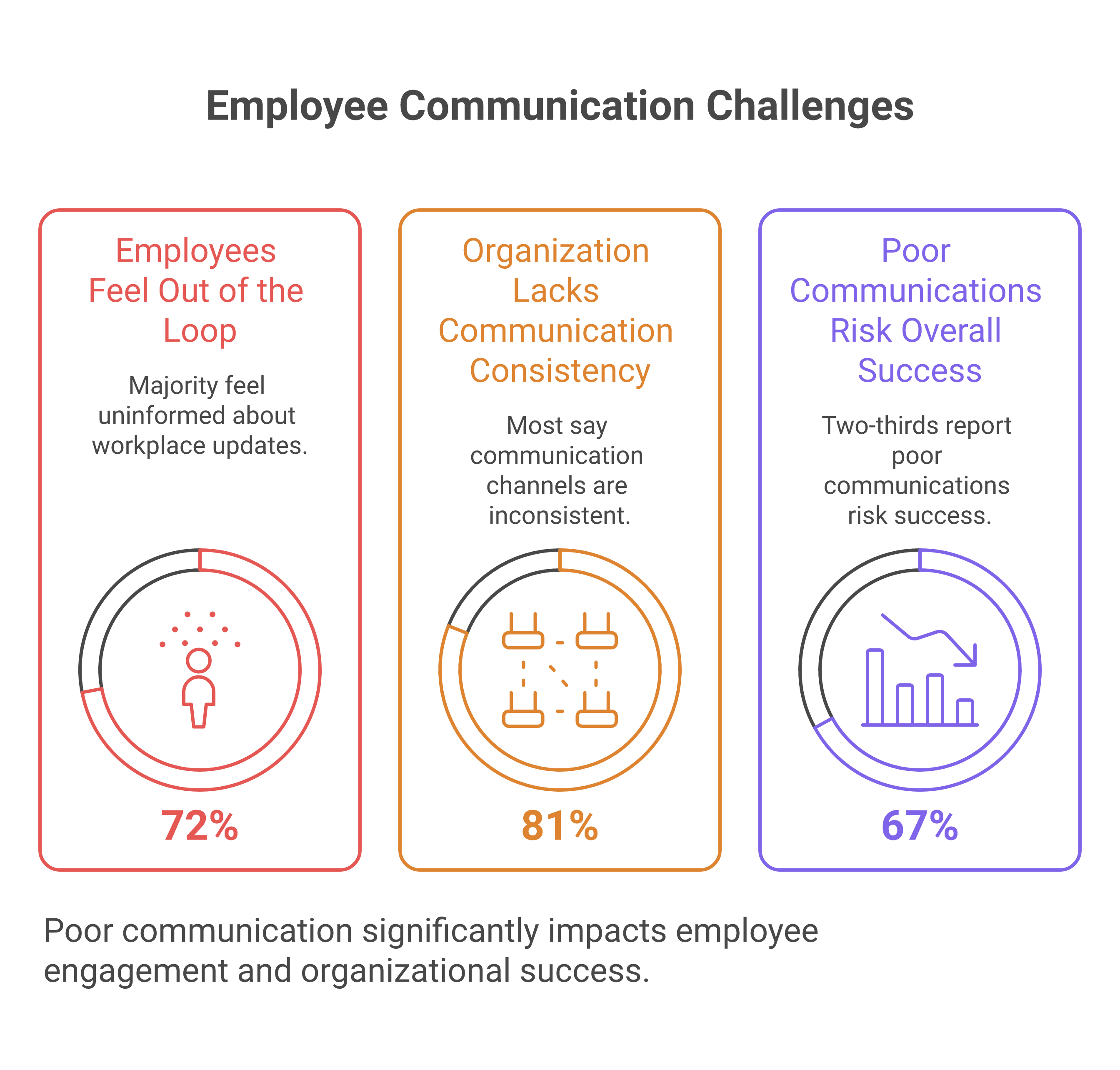
That is why the 2026 Appspace Workplace Research Report matters. It found that 72% of employees feel out of the loop on key workplace updates, 81% say their organization lacks consistency across communication channels, and 67% say poor communications and disconnected systems put overall success at risk. In plain terms, the cost of scattered communication is missed handovers, confused teams, and slower decisions.
A mobile-first workspace has to stop that failure before it starts. Zenzap does that by organizing work chat by team, project, or location, so people see the right update in the right place, with the file and task attached to the same thread.
How to Implement Zenzap Across All Teams
The fastest rollout starts with replacing the places where work already gets lost. Move shift updates, operational instructions, and file sharing out of personal messaging apps, email, and cloud-drive sprawl, then centralize them inside Zenzap.
That matters because Zenzap is a work chat app built for the AI era , combining real-time messaging, built-in tasks, file sharing, and personal AI agents in one secure, mobile-first workspace trusted by 10,000+ companies including Subway, Starbucks, Burger King, NHS, and Dollar General.
This keeps messages tied to the people who need them, which reduces side chats and makes handovers easier to audit.
Built-in to-dos, file sharing, and task-to-calendar sync keep the next action attached to the message instead of scattered across tools.
That keeps communication usable on mobile without turning into off-hours noise, and it removes access when someone leaves.
The simple test is this, if a manager can open one thread and see the update, the file, and the next action, the workspace is doing its job.
How to Lock Down Mobile Access Without Slowing Work
Security has to be the baseline, not an extra layer added after rollout. If people are using work chat on phones, then device protection, authentication, and controlled storage have to be part of day one deployment.
The Government of Canada mobile device security guidance treats mobile devices as essential collaboration tools and vulnerable targets, which is exactly the point here. Pair that with basic controls from SentinelOne's mobile device security guidance, such as strong passcodes, MFA, software updates, trusted app installs, app-permission review, and remote wipe, and you have the operational floor every team should meet.
Zenzap supports that posture with enterprise-grade security, cloud-secured business data, audit logs on higher tiers, SSO on higher tiers, and compliance alignment for SOC 2, GDPR, HIPAA, and CCPA. That means the phone becomes a work device without turning personal storage into company storage.
A good implementation rule is simple. If a file should not live on a personal camera roll, notes app, or consumer cloud folder, it should stay in the governed workspace where the conversation already lives.
How to Keep Files Attached to the Conversation
File sharing works best when the file stays where the decision gets made. When a policy, checklist, photo, or shift note lives inside the thread, the team does not have to remember which inbox or drive folder held the latest version.
That is where Zenzap's structured work chat matters most. It combines real-time messaging with secure file sharing and built-in tasks, so the handoff does not depend on memory. For a deeper look at that workflow, see how Zenzap's real-time chat and secure file sharing set new standards.
Security should follow the file, not trail behind it. Tarlogic's secure mobile app development guidance emphasizes secure storage, strong encryption, and robust authentication, and its supply-chain warning is worth noting, since compromised app components can create wide exposure.
That is why file control matters in practice. Zenzap gives teams media sharing and download control, malware scanning for files on higher plans, and company-owned data stored in the cloud, not on personal devices.
How to Roll Out Zenzap by Location, Team, and Role
The cleanest rollout follows the way the business already operates. Start with one location or one department, then expand once the handover process is working and people are using the workspace without friction.
For managers, the most important step is setting the structure before inviting everyone. Use team, project, or location groups, define who can create chats, and assign admin controls so communication stays organized instead of becoming another open channel.
For operations leaders, the rollout should match frontline reality. People need mobile access on iOS and Android, fast onboarding, notifications that respect working hours, and a layout that feels as familiar as texting. That is why Zenzap is built for retail, hospitality, clinics, construction, home services, healthcare, non-profit, and other multi-location teams that cannot afford slow adoption.
If you want a manager-focused implementation path, this guide to unifying tasks and messaging in Zenzap shows how to keep action items inside the conversation. If you are evaluating the broader operating model, this overview of secure mobile-first team chat outcomes maps the change from fragmented tools to controlled communication.
Key Takeaways
- Replace personal messaging apps, email threads, and scattered cloud folders with one governed workspace.
- Organize communication by team, project, or location so updates reach the right people fast.
- Turn on security controls early, including MFA, audit logs, permissions, and one-click offboarding.
- Keep files inside the conversation where the decision happens, not in personal storage.
- Roll out by location or department first, then expand once the workflow is stable.

FAQ
Q: What is the first step in implementing Zenzap for a multi-location team?
A: Start by mapping where communication currently breaks. Look at shift handovers, vendor updates, policy changes, and file sharing across chat, email, and cloud drives. Then create Zenzap spaces by team, project, or location so each group gets one place for the work that affects them. This gives you a clean operating structure before you invite the full organization.
Q: How do you keep mobile messaging secure without making it hard for employees to use?
A: Use device passcodes or biometrics, MFA, software updates, and trusted app installs from the start. Keep company data inside Zenzap instead of on personal devices, and use admin controls to limit access when needed. That way, the phone stays easy to use, but the data stays controlled. Security should reduce risk without adding extra steps to every message.
Q: Why should files live inside the chat instead of in email or cloud folders?
A: Because the file is only useful when it is tied to the conversation that created the decision. If a manager has to search three tools to find the latest version, the workflow already failed. Keeping files in the thread makes the next action obvious and reduces version confusion. It also improves accountability because the discussion and the document stay linked.
Q: How does Zenzap help with offboarding and access control?
A: Zenzap supports one-click offboarding, which is critical when someone leaves or changes roles. That helps remove access to company communication and business data faster than manual cleanup across personal apps. It also keeps company-owned data in the cloud rather than on private phones. For operations teams, that means less risk during transitions and fewer gaps in control.
Q: What teams benefit most from a secure, mobile-first workspace?
A: Frontline and distributed teams benefit the fastest, especially retail, hospitality, clinics, construction, home services, healthcare, non-profit, and other multi-location organizations. These teams live on mobile and need updates that reach them in real time. They also need files, tasks, and handovers to stay in one place so the next shift can act quickly. Zenzap is built for that kind of work from day one.
About Zenzap
Zenzap is a modern communication platform designed to streamline messaging across teams and groups in a single, organized workspace. It focuses on combining chat, task coordination, and collaboration tools to reduce the need for multiple disconnected apps. The goal of Zenzap is to improve productivity by making conversations more structured, searchable, and action-oriented.
That is the practical value for managers and operators. It means fewer missed handovers, cleaner audits, and faster action when something changes in the field. It also means your team can work from iOS, Android, Windows, Mac, or Web without forcing them to learn a complicated new system.
If your team can text, why keep letting critical work get lost across chat, email, and cloud folders when Zenzap can keep it in one secure mobile workspace?

Take Control of Your Team Communication
Chat, organize, and get work done - all in one place.
Other Blog Posts